本篇文章给大家介绍一下在小程序页面中自定义tabbar组件,实现底部tab切换的方法。

近日需求,设计稿如图
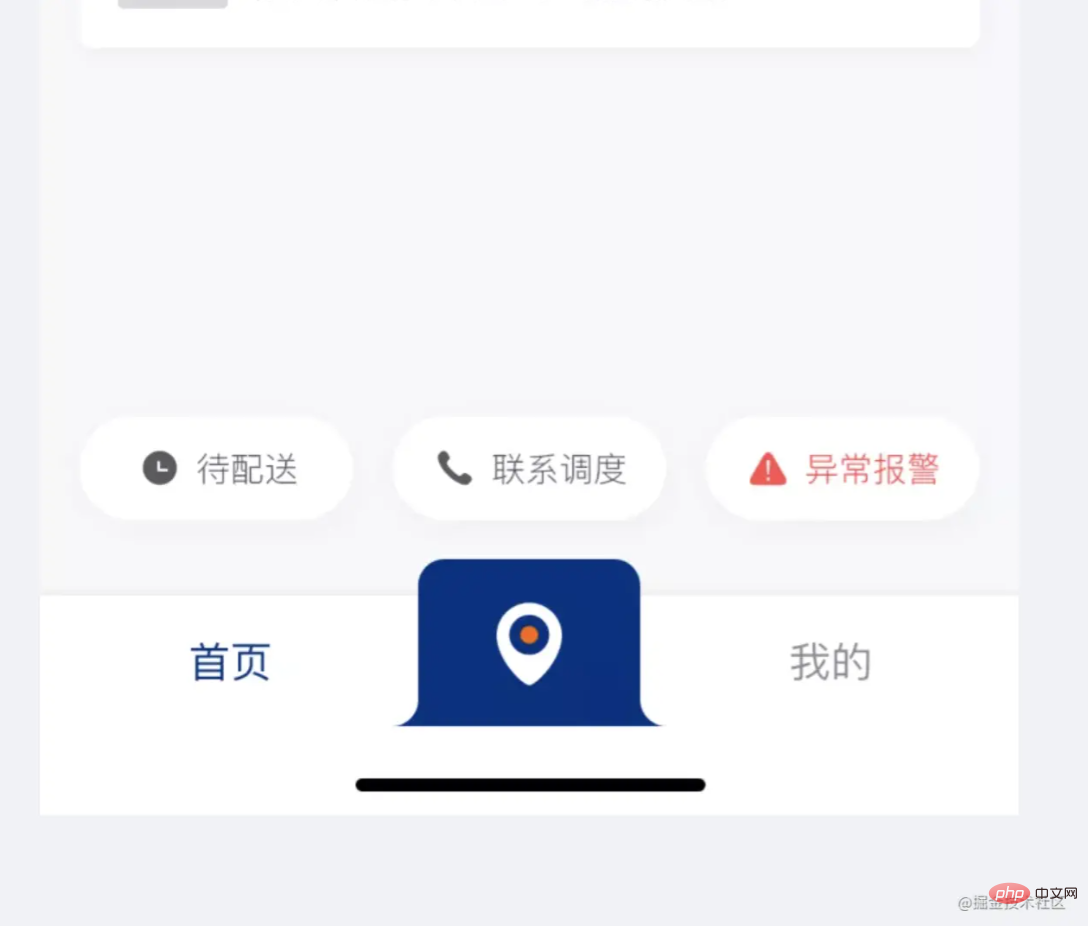
要实现一个特殊的底部导航栏,采用官方提供的自定义tabbar组件,添加底部tab页面,切换图片闪屏。【相关学习推荐:】
解决采用swiper轮播图+自定义组件
1.编写自定义组件jtab-bar
wxml文件
<view>
  <view>
    <image></image>
    <view>{{item.text}}</view>
  </view></view>
登录后复制
js文件
Component({
  data: {
    selected: 0,
    color: "#999999",
    selectedColor: "#032F82",
    list: [
      {
      type: 'text',
      text: "首页"
    },
    {
      type: 'image',
      icon: '../../image/icon_map.png',
      iconSelect: '../../image/icon_map_select.png',
      text: ''
    },
    {
      type: 'text',
      text: "我的"
    }]
  },
  attached() {
  },
  methods: {
    switchTab(e) {
      const data = e.currentTarget.dataset
      this.setData({selected: data.index})
      this.triggerEvent("setTab", data.index)
    }
  }
})
登录后复制
wxss文件
.jtab-bar {
  position: fixed;
  bottom: 0;
  left: 0;
  right: 0;
  height: 100rpx;
  background: white;
  display: flex;
  align-items: center;
  padding-bottom: env(safe-area-inset-bottom);
  box-shadow: 0px -2rpx 2rpx rgba(153, 153, 153, 0.1);
}


.jtab-bar-item {
  text-align: center;
  flex: 1;
  height: 100rpx;
}

.jtab-bar-item .jtab-text {
  height: 100rpx;
  line-height: 100rpx;
}


.jcover-img-bigicon {
  position: fixed;
  bottom: 0rpx;
  width: 210rpx;
  height: 128rpx;
  padding-bottom: env(safe-area-inset-bottom);
  margin: 0 auto;
  right: 0;
  left: 0;
}
登录后复制
使用的两张图片:


2.页面中使用
wxml文件
<view>
  <swiper>
        <block>
          <swiper-item>
            <view>{{item}}</view>
          </swiper-item>
        </block>
      </swiper>
  <jtabbar></jtabbar></view>
登录后复制
这里使用catchtouchmove=”swipperStop” swipperStop是个空函数来处理,禁止手动滑动
wxss文件
.jswipper-block {
  height: calc(100vh - 170rpx);
  background: #F7F8F9;
}
登录后复制
js文件
/**
   * 页面的初始数据
   */
  data: {
    background: ['demo-text-1', 'demo-text-2', 'demo-text-3'],
    currentTab: 0
  },

  setTabbar({detail}) {
    this.setData({currentTab: detail})
  },

  // 轮播图 禁止手动滑动 catchtouchmove="swipperStop"
  swipperStop(){
  },
登录后复制
暂完。
更多编程相关知识,请访问:!!
以上就是小程序如何自定义tabbar组件,实现底部tab切换的详细内容,更多请关注米云其它相关文章!